
THE CONNECTIONS BEHIND YOUR BUSINESS
How to Install and Troubleshoot SSL Certificates
Inspect the served certificate, distinguish trust and hostname failures, and plan a reversible installation.

An SSL/TLS certificate supports encrypted HTTPS connections for the hostnames it covers. A successful installation requires the intended certificate, its matching private key and the issuer’s required intermediate chain. It does not remove malware or fix every application security problem.
Start here - two-minute diagnosis
| Finding | Interpretation | Safe next step |
|---|---|---|
| Hostname mismatch | The served certificate does not cover the requested name | Compare SAN coverage with the actual root/www/subdomain |
| Expiration warning | The served certificate is outside its validity window, or the client’s clock needs checking | Check dates, clock and renewal responsibility |
| Untrusted issuer/chain | The client cannot establish trust using the served chain and its trust store | Inspect issuer/intermediates; do not bypass the warning |
| HTTPS connects but page warns | Mixed content or application behavior may remain | Inspect browser security/network findings |
| Redirect loop | Proxy, application or Apache scheme/host rules may disagree | Record each Location response before editing |
| Timeout or refused connection | Reachability, listener or network problem; not necessarily a certificate fault | Check DNS and connectivity before replacing a certificate |
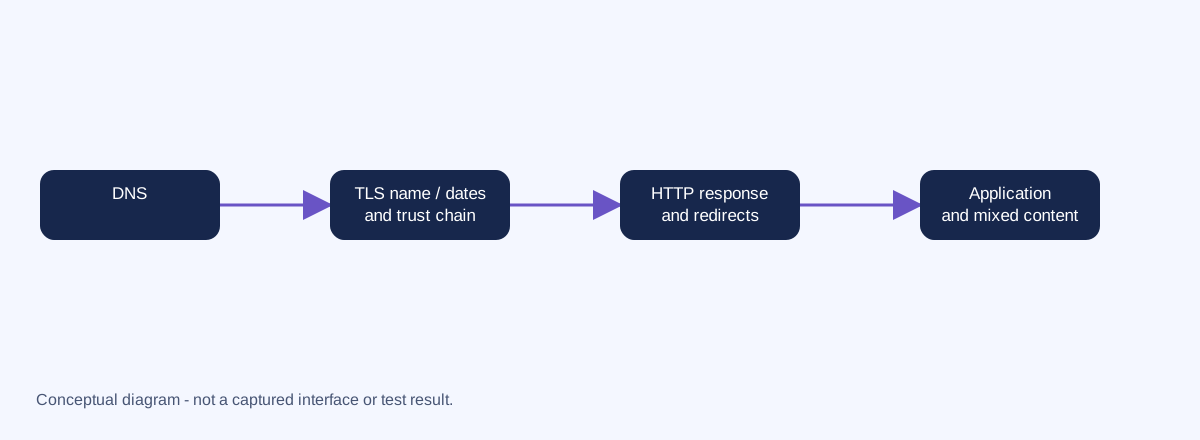
Read-only diagnosis
Open the exact intended hostname in a trusted browser. Inspect its certificate details and security panel. Do not bypass a warning and then call the result validated.
Windows command, with a placeholder you must replace:
curl.exe -I --max-time 15 https://your-domain.example/This requests headers without following redirects or disabling certificate validation. A normal HTTP response means the TLS connection succeeded for this client’s trust settings. HTTP403/405 may mean HEAD is rejected: check the browser’s actual GET. A30x response is a redirect, not inherently a certificate failure. Record Location and inspect the next intended hostname separately.
For an already-installed OpenSSL tool, inspect a local public certificate:
openssl x509 -in certificate.pem -noout -subject -issuer -dates -ext subjectAltNameExpected fields describe identity, issuer, validity and SAN names. They are not live server output. Inspecting a file does not prove the server serves that certificate, and seeing an issuer name does not prove chain trust. If the command cannot parse the file, check its format instead of guessing.
curl reference. OpenSSL certificate inspection.
Inspect the certificate actually served
Start in a browser with the exact HTTPS hostname. Open its certificate/security information and record SAN names, issuer, validity window and chain status. Check the client clock. If a proxy/CDN terminates TLS, this is the edge certificate; inspect origin TLS separately through the provider’s approved process.
If OpenSSL is already available, this command asks for the server’s certificates, sends SNI for the intended host, checks that hostname and stops on certificate verification failure:
openssl s_client -connect your-domain.example:443 -servername your-domain.example -verify_hostname your-domain.example -verify_return_error -showcertsReplace the placeholder. Use an interactive terminal; exit with Q or Ctrl+C after reading the handshake evidence. Do not leave this diagnostic running unattended. The local OpenSSL trust store may differ from the browser’s. A connection banner alone is not a successful verification result.
Expected evidence: certificate names and dates, the certificates the server sent, and the verification outcome. The shown certificate list is not necessarily a complete or verified chain. A root certificate normally need not be sent; required intermediates do. Do not mistake an omitted root for a missing intermediate.
| Problem | Evidence to distinguish it | Next safe investigation |
|---|---|---|
| Self-signed leaf | Leaf subject/issuer match and local trust rejects it; cryptographic inspection is needed to confirm self-signing | Determine whether a publicly trusted certificate should be served; matching names alone are not proof of trust |
| Missing intermediate | Trust cannot build a path and the served certificate list lacks a required issuer intermediate | Compare the issuer’s required bundle with the installed/served bundle; distinguish a missing trust anchor locally |
| Expired/not-yet-valid | Served notBefore/notAfter disagree with the correctly set client time | Check which certificate is actually served and renewal/deployment responsibility |
| Hostname mismatch | Requested name is not covered by appropriate SAN matching | Check root/www/wildcard scope and SNI virtual-host selection |
The same verification error can have multiple causes. Browser trust success on one cached client does not prove every client receives all required intermediates. Confirm the actual cause before reinstalling.
OpenSSL served-chain and verification behavior.
Recorded cPanel example: CubixDomains staging
This case was verified on October 12, 2026. It is historical evidence, not a claim that this certificate is currently served.
The staging host initially used a self-signed certificate. The owner installed an issued certificate through cPanel Manage SSL Sites after its matching key and issuer bundle were checked and the original staging host configuration was backed up privately.
| Recorded field | Sanitized result |
|---|---|
| Intended host and sole SAN | staging.cubixdomains.com |
| Served issuer | Let’s Encrypt YR1 |
| Served validity | 2026-10-12 21:13:12 UTC to 2027-01-10 21:13:11 UTC |
| Verification method | Windows TLS client using ordinary system chain/hostname validation; no bypass |
| Browser/HTTP evidence | Recorded staging page checks loaded over HTTPS without certificate warnings |
| Coverage limit | www.staging.cubixdomains.com was not covered |
The owner supplied CRT, its matching KEY and CABUNDLE in the designated cPanel fields for the staging host only. No key value, account identifier, server login URL or private filesystem path is reproduced here. After installation, public served-certificate validation and browser page checks were recorded. Force HTTPS Redirect remained disabled during that validation; installation was not treated as permission to change unrelated hosts or renewal scheduling.
The served expiry differed by one second from the rounded control-panel display. Use the served certificate’s fields when recording validity. The lesson is to verify what visitors receive, not just the certificate shown in the installation form.
Plan before installing - changes begin here
Identify where TLS terminates: the origin web server, a reverse proxy/CDN, or both. Installing only at the origin does not necessarily change what visitors see. Confirm hostname coverage and whether the provider manages certificates automatically before replacing anything.
Privately preserve the existing certificate, corresponding key, intermediate bundle and host configuration needed for rollback. Restrict key access; never paste keys into screenshots, public files, tickets or shell commands. Confirm that the new key matches the certificate through the approved hosting tool or a separately reviewed cryptographic check. Do not use a key from a different request.
A wildcard normally covers a single subdomain label, not the apex or arbitrary nested labels. List the real hostnames rather than assuming that root and www are interchangeable.
Authorized cPanel installation sequence
Only an authorized operator should perform these changes:
- Locate SSL/TLS and its Install and Manage SSL/Manage SSL Sites interface; availability and naming depend on the hosting setup.
- Select the exact domain/virtual host. Compare its document root with the intended website.
- Supply the issued certificate, matching private key and issuer-provided intermediate bundle in the designated fields.
- Review scope before installing. Stop if another host or an unrelated certificate would be replaced.
- Verify the served result before changing redirect behavior.
Use the issuer’s chain instructions rather than adding arbitrary downloaded certificates. A successful control-panel message still requires browser verification. No software installation, issuance, account agreement or new paid service is implied by this article.
cPanel SSL/TLS interface reference.
Verify the served result
Check the actual root, www and every required subdomain over HTTPS. Confirm SAN coverage, served validity, trusted chain and intended content. Check assets/forms for mixed content and redirects for loops. Use more than one relevant client where possible; trust stores can differ.
Advanced operators can use OpenSSL s_client with explicit hostname verification and verification-failure handling. Its default diagnostic behavior is not a substitute for a browser trust test; document the local trust store and tool version.
OpenSSL TLS diagnostic behavior.
Rollback boundaries and renewal
If installation fails or affects another host, stop. Restore the previous verified certificate/key/bundle and relevant host configuration using the approved rollback plan. Restoring an expired or revoked certificate does not restore acceptable security; it needs an issuer/operator resolution rather than a bypass.
Enable a host-specific HTTPS redirect only after validation. Delay HSTS policy changes until HTTPS and subdomain coverage are understood; removing a redirect cannot undo a cached HSTS policy. Define the renewal owner, expiry monitoring and reinstall/revalidation process. AutoSSL and manually issued certificates have different renewal arrangements.
A useful next step
Compare certificate coverage with the hostnames your business actually uses. Check whether hosting already includes an appropriate certificate before buying another. This guide does not advertise a Cubix installation/consulting service.
Related: DNS records guide and the existing SSL comparison page.
Hostname verification standard. HSTS policy and persistence.
WHEN IT FITS YOUR NEXT STEP
Explore ssl certificates for your next step.
Support encrypted HTTPS connections between your website and its visitors with certificate coverage that fits your site.